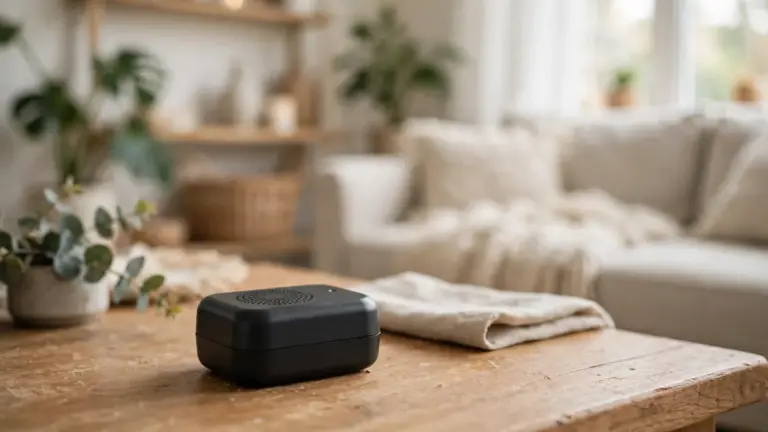
You tap a link and a page appears. You speak to a small cylinder on your counter and music starts playing. You send a photo across the world in under a second. None of this feels remarkable anymore, which is exactly why it is worth understanding. The internet and the devices around you run on a set of ideas that are simpler than they look, and knowing them changes how you use technology, how you protect yourself, and how much you pay for it.
The short answer is this: the internet is a network of networks that moves small chunks of data between computers using shared rules, and your devices are simply the places where that data is created, displayed, and stored.
Key Takeaways
- The internet has no center. It is thousands of networks agreeing to pass data to each other.
- Data travels in small packets that take independent routes and are reassembled at the other end.
- Wi-Fi is radio. Your router is a radio station that connects your devices to your internet provider.
- The cloud is not a place in the sky. It is computers in large buildings, owned by someone else.
- Free online services are usually paid for with your attention and your data.
- The most important security habits are strong unique passwords, two-factor authentication, and keeping software updated.
Table of Contents
What the internet actually is
The internet is not a single thing, and nobody owns it. It is a network of networks: your home network connects to your internet service provider, which connects to larger networks, which connect to each other, until the whole thing forms one global web. What holds it together is a shared set of rules called protocols. The most important are TCP and IP, which together define how data is addressed, broken up, sent, and reassembled.
Every device on the internet has an address called an IP address, a string of numbers that works like a postal address for data. When you visit a website, your device sends a request to that site’s IP address, and the site sends the page back to yours. You never see these numbers because the Domain Name System, or DNS, translates human-readable names like curiousmindmagazine.us into IP addresses behind the scenes. DNS is often called the phone book of the internet, and the comparison is accurate enough: you look up a name, you get a number, and the connection happens.
The internet began as a US government research project in the late 1960s, grew through universities in the 1970s and 1980s, and opened to the public in the 1990s with the arrival of the World Wide Web. The web, the system of pages and links you browse, is one service that runs on the internet. Email, video calls, and messaging apps are others. They all share the same underlying network.
How data travels: packets, routers, and ocean cables
When you send a photo to a friend, your device does not send one big file in a single stream. It chops the photo into small pieces called packets, each labeled with where it is going and where it fits in the sequence. The packets travel independently across the network, possibly taking different routes, and your friend’s device reassembles them in the right order. If a packet goes missing, it is simply sent again.
The devices that direct packets are called routers. A router reads the destination address on each packet and forwards it toward the next hop on the journey, the way a postal sorting office routes letters. Your home router does this for your household. Much larger routers do it for cities, countries, and continents.
Between continents, the vast majority of data travels through cables lying on the ocean floor. These fiber-optic cables carry pulses of light, and they are the reason a video call to another country feels instant. Satellites play a role too, especially for remote areas, but the cables do most of the heavy lifting. The physical internet is, in large part, a network of glass threads under the sea.
Speed on the internet is measured two ways. Bandwidth is how much data can flow at once, usually measured in megabits per second, and it determines how fast a large file downloads. Latency is how long a single packet takes to make a round trip, measured in milliseconds, and it determines how responsive a video call or an online game feels. A connection can have high bandwidth and still feel slow if its latency is high.
What Wi-Fi actually is
Wi-Fi is radio. Your router broadcasts a radio signal, and your devices tune in to it the way a radio tunes in to a station. The router connects to your internet provider through a modem, which is the box that links your home to the provider’s network. In many homes today, the modem and router are combined into a single device supplied by the provider.
Wi-Fi operates on radio bands, most commonly 2.4 GHz and 5 GHz, with newer routers adding 6 GHz. The lower band travels farther and passes through walls better, but it carries less data. The higher bands carry more data but over shorter distances. That is why your phone might show a strong signal in one room and a weak one two rooms away: the signal weakens as it passes through walls, floors, and appliances.

Your internet plan’s advertised speed is the maximum rate between your home and your provider, not a guarantee for every website you visit. If a site’s own servers are slow, or the route to them is congested, your pages will load slowly no matter how fast your plan is. And the speed your devices actually get depends on how many of them are using the connection at once. A household streaming video on two televisions while someone is on a video call is sharing one pipe.
Placing your router in a central, elevated spot, away from thick walls and metal objects, usually helps more than buying a faster plan. Mesh Wi-Fi systems, which use several small units around the home instead of one router, solve the distance problem by handing your devices from one unit to the next as you move around.
What the cloud is
The cloud is a marketing word for a simple idea: instead of storing files and running software on your own device, you store them on computers owned by a company, in large buildings called data centers, and reach them over the internet. When you save a photo to a cloud service, it is copied to a hard drive in a warehouse somewhere, usually in more than one location so that a single failure does not lose it.
Data centers are industrial buildings full of racks of servers, kept cool by powerful air conditioning and powered by large amounts of electricity. The biggest cloud providers operate dozens of them around the world. When you open a cloud document, you are connecting to the nearest data center that holds a copy, which is why it feels fast.
The cloud is convenient, and it is also a trade. You give up direct control of your files in exchange for access from anywhere and automatic backups. If the service goes down, your files are temporarily unreachable. If the company changes its terms, your costs can rise. And the company that holds your data can, in principle, look at it, which is why the privacy policies of cloud services matter more than most people realize.
How websites and apps work
A website lives on a server, a computer that stays on all the time and waits for requests. When you type an address into a browser, your browser asks the DNS system for the site’s IP address, connects to that server, and requests the page. The server sends back files: text, images, and code. Your browser assembles them into the page you see.
Most modern websites are not single files. A page is built from many pieces, pulled from several servers, and assembled on the fly. The text might come from one server, the images from another, and the advertisements from a third. This is why a page can load in stages, with the text appearing before the images.
Apps work the same way underneath, with one difference: an app is a program installed on your phone that talks to the company’s servers directly, instead of through a browser. The app handles the display, and the server handles the data. When you open a banking app and see your balance, the app asked the bank’s server for it a moment earlier.
The letters HTTPS at the start of a web address mean the connection between your browser and the server is encrypted. Encryption scrambles the data so that anyone intercepting it, on a public Wi-Fi network for example, cannot read it. The padlock icon in your browser means the connection is encrypted and the site has presented a valid certificate. It does not mean the site itself is honest. A scam site can have a valid padlock too.
How your phone connects: towers, 4G, and 5G
Your phone connects to the internet through radio towers when you are away from Wi-Fi. Each tower covers a small area called a cell, and your phone hands off from one cell to the next as you move, the way a relay runner passes a baton. The tower connects to the provider’s network, which connects to the internet.
The G in 4G and 5G stands for generation. Each generation has brought faster speeds, lower latency, and more capacity, meaning more devices can use the same tower at once. 5G adds a new trick: it can use very high-frequency radio waves that carry enormous amounts of data over short distances, alongside lower frequencies that travel farther. In practice, most people’s 5G experience is modestly faster than 4G, not the dramatic leap the advertisements suggest, because the fastest version of 5G only works near specially equipped towers.
Your phone constantly chooses between Wi-Fi and cellular data, preferring Wi-Fi when it is available because Wi-Fi is usually faster and does not count against your mobile data plan. When Wi-Fi is weak, your phone may switch to cellular without telling you, which is how people sometimes burn through mobile data at home without realizing it.
How search engines work
A search engine has three jobs: find pages, understand them, and rank them. Automated programs called crawlers travel the web following links from page to page, copying what they find. That copy goes into an index, a giant catalog of the web’s contents. When you search, the engine consults the index, not the live web, and returns the pages its ranking system judges most relevant and trustworthy for your query.
Ranking is where the complexity lives. Search engines consider hundreds of signals, including whether the page matches your words, how many other pages link to it, whether it loads quickly, and whether it works well on a phone. The exact formula is a closely guarded secret and changes constantly. What does not change is the basic idea: the engine is guessing which pages will satisfy you, and it learns from what millions of people click.
The results at the top of a search page are often advertisements, labeled as such in small text. Below them are the organic results, pages the engine ranked on merit. Knowing the difference matters, because an ad at the top is there because someone paid, not because the engine judged it best.
How email works
Email is one of the oldest internet services, and it still runs on the same basic idea: your message goes from your device to your provider’s mail server, which looks up the recipient’s provider and forwards the message to its server, where it waits until the recipient opens it. The message itself is a text file with a header listing the sender, the recipient, the subject, and the route it took.
Spam filtering happens at the server level, before the message reaches your inbox. Filters look for patterns associated with junk mail: suspicious links, mismatched sender addresses, and words commonly used in scams. Some spam still gets through, and some legitimate mail still gets caught, which is why the spam folder is worth a glance now and then.
Email is not encrypted by default in the way a banking website is. Most providers now encrypt the connection between your device and their server, but the message itself can be read by the providers along the way. For truly private communication, encrypted messaging apps are a better choice than email.
How streaming works
When you watch a video online, you are not downloading the whole file and then pressing play. Your device downloads small chunks, plays them, and downloads the next chunks while you watch. This is called streaming, and the small reserve of downloaded video is the buffer. If your connection slows down, the buffer drains, and the video pauses to refill it. That spinning wheel is your buffer running dry.
Video files are compressed before they are sent, which means the service removes information your eyes are unlikely to notice, so the file is smaller. Streaming services keep several versions of each video at different quality levels and switch between them depending on your connection speed. That is why a video sometimes starts blurry and sharpens after a few seconds: the service began with the low-quality version and upgraded as it confirmed your connection could handle more.
Content delivery networks, or CDNs, make streaming fast. A CDN keeps copies of popular videos on servers in many cities, so when you press play, the video comes from a nearby server rather than from across the country. The same idea speeds up websites, app downloads, and software updates.
How your devices talk to each other
Bluetooth is a short-range radio technology that lets devices talk directly to each other without going through the internet: your phone to your headphones, your watch to your phone, your laptop to a wireless mouse. It works over a few meters, uses very little power, and pairs devices by having them recognize each other once and remember the connection.
Smart home devices use Wi-Fi, Bluetooth, or specialized low-power protocols to connect to your home network and, usually, to the manufacturer’s cloud servers. When you ask a smart speaker to turn off a light, your voice goes to the company’s servers, is interpreted there, and a command comes back to the light. The round trip takes a second or two, which is why smart home commands sometimes feel slower than flipping a switch.
The Internet of Things, the catch-all name for connected devices from doorbells to thermostats, creates a security problem: every connected device is a potential entry point into your home network. Cheap devices with weak security have been used to attack other targets, because their owners never changed the default password or updated the software. A smart device is still a computer, and it needs the same care as any other.
How your data is collected
When a service is free, you are usually not the customer. You are the product being sold to advertisers. Free services collect information about what you do, build a profile of your interests, and sell advertisers the chance to show you ads based on that profile. The service does not usually sell your name and address directly. It sells access to people like you.
Cookies are small files a website stores on your device so it can remember you: what is in your shopping cart, whether you are logged in, what language you prefer. First-party cookies come from the site you are visiting and are mostly useful. Third-party cookies come from other companies, usually advertisers and analytics firms, and they are what allow an ad for shoes to follow you from one site to another.
Your phone collects more than your browser does. Apps can request access to your location, your contacts, your photos, and your microphone. Some of that access is necessary for the app to work. Some of it is not. Reviewing app permissions once in a while, and removing access an app does not need, is one of the simplest privacy steps you can take.
Staying safe: the basics that actually matter
Most online security advice boils down to a short list, and the short list works.
Use a different password for every important account. If one site is breached and you reused the password, every account sharing it is exposed. A password manager generates and stores strong passwords so you only have to remember one master password.
Turn on two-factor authentication wherever it is offered, especially for email, banking, and social media. Two-factor authentication means logging in requires something you know (your password) and something you have (a code from your phone or an authenticator app). It stops most account takeovers cold, because a stolen password alone is not enough.
Keep your software updated. Updates frequently include security fixes for vulnerabilities that attackers already know about. The longer you delay an update, the longer the window stays open.
Learn to spot phishing. Phishing is a message that pretends to be from a trusted source, a bank, a delivery company, a colleague, and tries to get you to click a link or share information. The signs are consistent: urgency, a request for credentials or payment, a sender address that is almost but not quite right, and a link that goes somewhere different from what the text says. When in doubt, go to the company’s website directly instead of clicking the link.
Be cautious on public Wi-Fi. A hotel or coffee shop network is shared with strangers, and while HTTPS encryption protects most of your browsing, it is still wise to avoid banking and sensitive logins on networks you do not trust, or to use your phone’s cellular data instead.
Common myths about technology
Myth: Incognito mode makes you anonymous. It does not. Private browsing only prevents your own browser from saving history and cookies. Your internet provider, your employer, and the websites you visit can still see what you do.
Myth: More bars always mean faster internet. Signal bars measure the strength of your connection to the router or tower, not the speed of the internet beyond it. A full signal on a slow connection is still slow.
Myth: You should let your phone battery drain completely before charging. This was true for old nickel-based batteries. Modern lithium-ion batteries prefer partial charges and do not need to be drained. Charging overnight is fine, though keeping a phone at 100 percent for long periods can wear the battery faster.
Myth: Macs and phones cannot get viruses. They can. Every operating system has vulnerabilities, and attackers target whichever platform has the most users. Macs and phones are attacked less often than Windows PCs, but “less often” is not “never.”
Myth: Deleting a file removes it. Deleting usually just removes the pointer to the file, not the data itself. The space is marked as available, and the data remains until something overwrites it. That is why deleted files can sometimes be recovered, and why securely erasing a device before selling it matters.
Frequently asked questions
Why is my Wi-Fi slow in some rooms? Radio signals weaken as they pass through walls, floors, and appliances, and they compete with neighboring networks. Moving the router to a central spot, or adding a mesh system, usually helps more than upgrading your plan.
What is the difference between the internet and Wi-Fi? The internet is the global network. Wi-Fi is a wireless way to connect to it inside your home. You can have Wi-Fi without internet access, for example when your provider is down, and you can reach the internet without Wi-Fi, through a wired connection or cellular data.
Is it safe to save passwords in my browser? Browser password storage is reasonably secure and far better than reusing the same password everywhere. A dedicated password manager offers stronger protection and works across all your devices and browsers.
Why does my phone slow down over time? New software is built for newer hardware, storage fills up, and batteries degrade, which can lead some phones to reduce performance to prevent unexpected shutdowns. Freeing storage space and replacing an old battery often help more than buying a new phone.
Do I need antivirus software? Built-in protection on modern Windows and Mac computers covers most threats for most people, as long as it is kept updated. The bigger risks are phishing and unsafe downloads, which no antivirus can fully prevent. Keeping software updated and thinking before you click matters more.
Related reading
- Holiday Shopping Scams: How Fake Stores and Phishing Texts Work
- Is Hotel Wi-Fi Safe? What Actually Happens on Public Networks
- AI Voice Cloning Scams: How a 30-Second Call Can Fake a Family Member
- Why Your Smart Home Devices Cost More to Run Than You Think
- Why Does Your Phone Battery Die Faster in the Cold?
- How Do Password Managers Actually Work?
- Why Do Software Updates Take So Long?
- What Happens When You Delete Something From Your Phone?
- How Does Facial Recognition Actually Work?
- Why Do Streaming Services Keep Raising Prices?
- What Is Two-Factor Authentication and Why Should You Use It?
- How Do Smart Speakers Hear You From Across the Room?
- Why Does Your Wi-Fi Slow Down at Night?
- What Is the Cloud, Really?
- Why Does Your Phone Get Hot?
- How Does GPS Know Where You Are?
- What Is a VPN and Do You Actually Need One?
- Why Do Apps Ask for So Many Permissions?
- How Does Your Email Know a Message Is Spam?
- Why Does Your Laptop Battery Swell?
- What Happens When You Click “Accept All Cookies”?
- How Do QR Codes Actually Work?
- How Does Bluetooth Work?
- Why Do Apps Drain Your Battery?
- How Does Face ID Work?
- What Is an Internet Cookie?
- How Do Search Engines Work?
- Why Do You Need to Restart Your Computer?
- How Does Wi-Fi Work?
- How Do Smartphones Know Which Way Is Up?
Sources and further reading
- Federal Trade Commission: consumer.ftc.gov: practical guidance on scams, identity theft, and online privacy.
- Cybersecurity and Infrastructure Security Agency: cisa.gov: official US guidance on staying safe online.
- Electronic Frontier Foundation: eff.org: clear explanations of surveillance, encryption, and digital rights.
- National Institute of Standards and Technology: nist.gov: the source for password and security guidelines.
- Federal Communications Commission: fcc.gov: broadband, Wi-Fi, and consumer technology information.
- Internet Society: internetsociety.org: how the internet works and how it is governed.
For more on the technology around you, see our Tech & Security section, and for the money side of the online world, how money works in America. Remote workers may also want to read how pay and careers work, and for the bigger picture, the everyday systems that run your life.
This article is for general educational and informational purposes only and is not financial, legal, insurance, tax, or medical advice. Always consult a qualified professional regarding your specific situation.